

A laptop USB port that stops working can cut you off from your mouse, your keyboard, your storage drive, your phone charger and your Wi-Fi dongle all at once. People often assume the port is broken and plan a board repair, but most USB faults start in software or with a worn device or cable. The port itself can fail too, especially if it has taken years of plugging and unplugging, a hard knock on a plugged-in drive or a spill. This guide shows how to separate a software problem from a hardware one, how to test a port properly and what a port repair involves.
Test the device, the cable and the port
The fault can be in three places: the device, the cable or the port. Plug the device into another port on the same laptop. If it works there, the first port is the suspect. Plug it into another computer. If it fails there too, the device or cable is faulty. Try another cable if the device uses one. Plug a different device into the suspect port. This simple rotation finds the source in minutes and avoids a repair that was never needed. Also note whether the port is USB-A, USB-C or a combined port that also charges or carries video, because those ports have more parts that can fail.
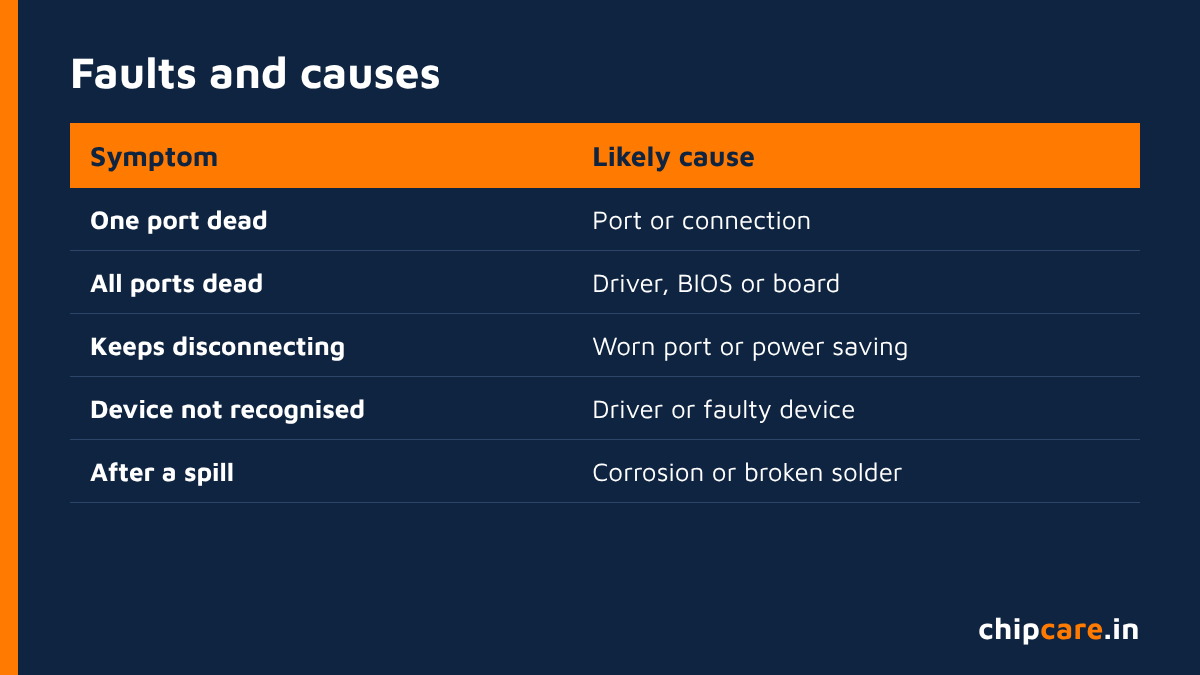
Symptoms and likely causes
| Symptom | Likely cause | First check |
|---|---|---|
| One port dead, others fine | Port or its connection | Inspect for debris and damage |
| All ports dead | Driver, BIOS setting or board fault | Restart, update, check BIOS |
| Device connects and disconnects | Worn port, loose solder or power saving | Wiggle test, turn off power saving |
| Device not recognised | Driver or faulty device | Try another computer |
| Port works but no power to device | Power fault or short | Technician check |
| Stopped after a spill or knock | Liquid or broken solder | Stop use and get it checked |
Always try the same device in another port and on another computer. Two plugs tell you more than an hour of guessing.
Step by step: software checks
- Restart the laptop.
Do a full restart, not only a sleep and wake. - Look into the port.
Use a torch to check for lint, bent pins or a bent tongue in the port. - Clean gently.
Lift lint with a wooden toothpick. Do not use metal tools or liquids. - Turn off USB power saving.
In the power settings and the device manager, stop the system from switching off USB ports to save power. - Reinstall the USB drivers.
In the device manager, uninstall the USB controllers and restart so they reinstall. - Check the BIOS.
Make sure USB ports are enabled and that no legacy setting blocks them. - Update the system and the BIOS.
Updates often fix USB faults. Follow the maker's instructions for BIOS updates, and keep the laptop on charge.
When the port needs repair
If a port fails after the checks, a technician will open the laptop and look at it. A common finding is a port that has worked loose, with cracked solder joints on its pins, which can be resoldered. Another is a bent or broken tongue, which needs a new port. On some laptops, the ports sit on a small daughter board attached to the main board by a cable, so the repair is the replacement of that board. On others, they are soldered to the main board, and repair needs skilled soldering. A spill can corrode the pins, and the board needs cleaning. For power-related ports, such as the charging jack, see laptop DC power jack replacement and the laptop DC power jacks. For deeper board problems, see laptop motherboard repair vs replace. Browse laptop spare parts for ports and boards.
Do not force a plug into a port that resists. Forcing a plug can bend the pins or break the tongue, which turns a cheap fix into a board repair. Check the plug orientation and look inside the port first.
Common mistakes
- Assuming the port is dead without testing the device on another computer.
- Pulling a plug sideways and breaking the port.
- Using metal tools to clean the port.
- Leaving a heavy drive hanging from the port.
- Ignoring a loose port until it fails completely.
Looking after USB ports
Pull plugs straight out and keep cables from tugging the port sideways. Do not leave heavy adapters or drives dangling. Use a short cable or a small hub on a desk so that the weight does not rest on the port. Keep ports free from dust with a dust plug if you carry the laptop in a bag. If you use one port most often, rotate to spread the wear. When buying cables and adapters, choose known brands, since poor ones can have loose plugs that damage ports. A laptop that charges through USB-C should be treated gently, as a damaged port may stop charging. See how to choose a laptop charger adapter.
For repair shops, test every USB port with a known-good device before and after any repair, along with the card reader and the audio jack. A USB fault found at the counter costs nothing, and one found at the customer's desk costs a visit. See laptop Wi-Fi not connecting for the same end-of-job checklist. For background, see the Wikipedia page on USB.
USB-C ports are more complex
A USB-C port can carry data, charge the laptop and send video, so it contains more circuitry than an older USB-A port. A fault may therefore show up in only one of these roles. The laptop may charge through the port but not recognise a drive, or the drive may work while a monitor stays blank. Test each role separately with known-good accessories. Cables matter more here as well: some USB-C cables carry only power, and some do not support video, so a cable that fails one test is not proof of a faulty port.
If a USB-C port is also the charging input, a failure can leave the laptop unable to charge, so treat a loose or intermittent port as urgent. Charge only with the correct adapter and cable, avoid wiggling the plug, and plan the repair before the port stops completely. A port that wobbles in its socket usually has cracked solder joints or a damaged shell, and the repair is more reliable when done before the port fails entirely.
Finally, remember that dust and lint pack tightly into USB-C ports because the tongue is small. A careful clean with a wooden toothpick often restores a plug that no longer clicks in fully, and it is the cheapest fix of all, so always do it before you start any repair or order any part.
Frequently asked questions
Why is my laptop USB port not working?
A driver, power saving, a faulty device or cable or a damaged port can cause it. Test another device and port first.
Why does my USB device keep disconnecting?
A worn or loose port, a poor cable or power saving can cause it.
Can a USB port be repaired?
Yes. A loose port can be resoldered, and a broken one can be replaced.
Is it the port or the motherboard?
If one port fails and others work, the port is likely. If all fail after software checks, the board may be involved.
Can I clean a USB port?
Yes, gently with a wooden toothpick or a soft brush. Avoid metal tools and liquids.
Does a spill damage USB ports?
It can. Switch off the laptop and get it cleaned quickly.