
The battery icon shows a little plug and the words "plugged in, not charging", and the percentage will not move. It is one of the most searched laptop problems, and the cause is often cheaper than people fear. Sometimes it is a loose adapter, sometimes a setting, and sometimes the battery has simply reached the end of its life. This guide walks through the checks in the order that saves you the most time and money.
Why a laptop says "plugged in, not charging"
That message means the laptop sees power but has decided not to push it into the battery. There are four broad reasons. The adapter is not delivering enough power. The battery is worn and the laptop no longer trusts it. A setting is deliberately holding the charge at a limit, such as 80 percent. Or something in the charging path, like the DC jack or the battery's own protection circuit, has failed. Working through them in that order avoids buying a part you do not need.
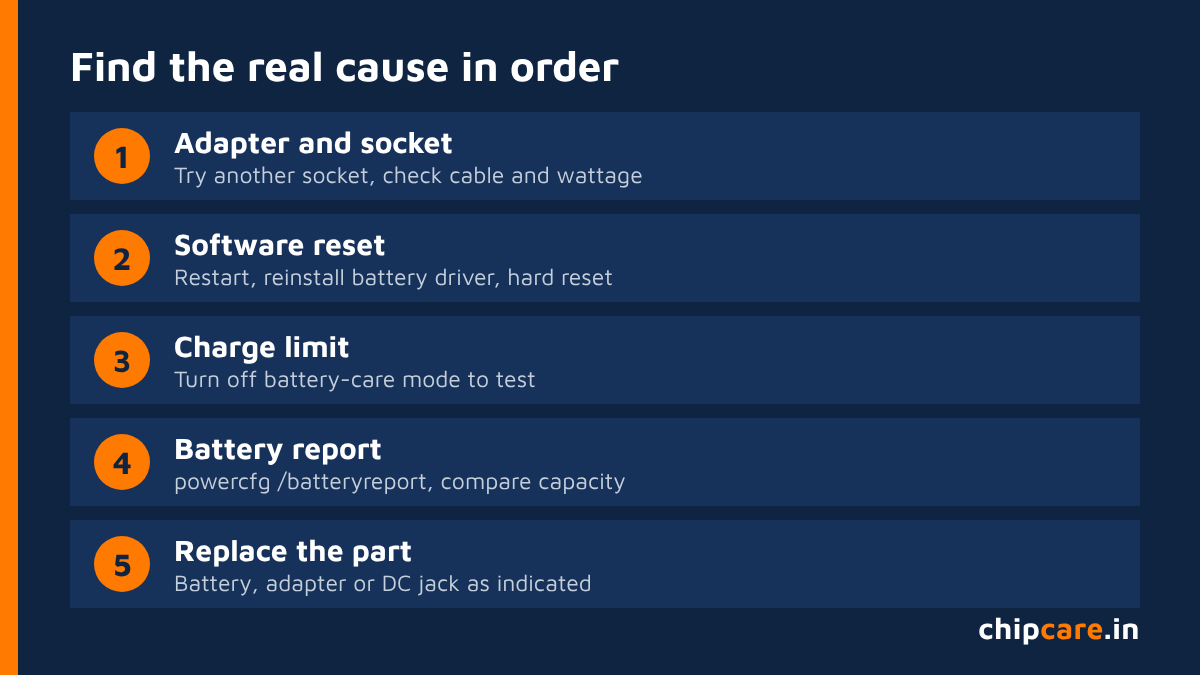
Fix 1 to 3: rule out the adapter and the socket
- Try another wall socket and unplug extension boards.
A dead socket or a loose multi-plug is more common than you would think. Plug the adapter straight into the wall. - Look at the adapter and cable.
Check for kinks near both ends, a warm smell, or a loose tip. If the adapter has an LED, it should be lit. A frayed cable is a reason to replace the adapter, not tape it. - Match the wattage.
Read the rating on the old label and on the new one. An adapter with a lower wattage than the laptop expects may power the machine but refuse to charge, and a laptop will often show a warning message on start-up. Our laptop adapters list the rating on every product page.
Good to know: Very cheap unbranded adapters are a frequent hidden cause. They can give unstable voltage and shorten the life of a good battery. Buy an adapter built for your laptop model.
Fix 4 to 6: reset the power path in software
- Restart with the charger connected.
A full shutdown, not sleep, clears many temporary faults. - Reinstall the battery driver.
Open Device Manager, expand Batteries, right-click "Microsoft ACPI-Compliant Control Method Battery", choose Uninstall device, then restart. Windows reinstalls the driver on boot. The ACPI layer is what lets Windows talk to the battery, so a stale driver can block charging. - Do a hard reset.
Shut down, unplug the adapter, and if the battery is removable, take it out. Hold the power button for about 30 seconds, put the battery back, plug in and start the laptop. For sealed laptops, hold the power button with the adapter unplugged and follow your maker's reset guide.
Fix 7: check for a charge limit or battery-care setting
Many laptops now include a feature that stops charging at around 60 to 80 percent to slow wear. Lenovo, Dell, HP, ASUS and others each ship their own app for it, and some can be set in the BIOS as well. If your laptop stops at a fixed figure and shows "plugged in, not charging", open the maker's power app and turn the limit off for a day to test. This is normal behaviour, not a fault. The reasoning is sound, since Battery University notes that keeping lithium cells away from full charge reduces stress and extends life.
Fix 8: read the battery report before you buy anything
Windows can tell you how worn the battery really is. Open Command Prompt as administrator and run the command below; Microsoft documents it in the powercfg reference.
powercfg /batteryreport /output "C:\battery_report.html"Open the HTML file in a browser and compare two figures: Design Capacity and Full Charge Capacity. If the second is far below the first, the battery has worn out. A rough rule many technicians use is to plan a replacement when full charge capacity drops under about 60 percent of design capacity, or earlier if runtime has become unusable.
Is it the battery, the adapter or the charging port?
| What you see | Most likely cause | What to do |
|---|---|---|
| Adapter LED is off or flickers | Adapter or cable | Test with a known good adapter of the same rating |
| Laptop runs on the adapter but the percentage never rises | Worn battery or charge limit | Run the battery report, check the maker's power app |
| Charges only when the cable is held at an angle | Loose or damaged DC jack | Replace the power jack; do not keep forcing the plug |
| Laptop dies the moment you unplug it | Battery has failed | Replace the battery |
| Battery shows "consider replacing" or 0 percent health | Battery end of life | Replace the battery |
Check the cheap, boring things first. Most "dead batteries" turn out to be a worn adapter or a setting.
Fix 9: replace the battery (and how to choose the right one)
If the report confirms a worn battery, replacement is the real fix. Match the battery by the exact part number on the old pack or the laptop's model number, never by screen size alone. Browse by brand to narrow the choice quickly: Dell, HP, Lenovo, ASUS and Acer all have dedicated lists. For Apple machines use MacBook batteries. Check the cell chemistry, voltage and watt-hour rating on the listing, since a mismatch can cause poor runtime or a refusal to charge.
Handle old packs carefully. A swollen battery, a pack that bulges the trackpad, or one that smells sweet or chemical needs to be removed immediately and taken to an e-waste or battery recycling point. A damaged lithium-ion cell can overheat. If you are also upgrading other parts while the laptop is open, the same trip works well for adding memory, as we explain in our guide to upgrading laptop RAM.
Need a battery or adapter for your laptop?
Search by brand or model number. Every listing shows the part type and warranty.
How to make the next battery last longer
- Avoid running on 0 percent. Partial charges are fine for lithium-ion cells.
- Keep the laptop cool. Heat ages a battery faster than almost anything else, so do not charge it on a bed or under a pillow.
- If the laptop stays plugged in for months, use the maker's charge limit feature.
- Use the original-rated adapter and replace damaged cables early.
- Clean vents and replace dried thermal paste if the machine runs hot. See cooling and fans for replacement fans.
Frequently asked questions
Why does my laptop say plugged in, not charging?
The laptop detects power but is not sending it to the battery. Common causes are a weak or mismatched adapter, a worn battery, a charge limit set in the maker's app, a driver fault or a damaged charging port.
Can I use a laptop with a dead battery?
Usually yes, directly on the adapter, though some models will not boot without a battery fitted. Running without a good battery also gives you no protection from power cuts, so unsaved work is at risk.
How do I know if the battery or the charger is bad?
Test with a known good adapter of the same rating. If the laptop still will not charge, run the battery report and compare design capacity with full charge capacity. A very low ratio points to the battery.
How long does a laptop battery last?
It depends on heat, usage and charge habits, but many laptop batteries show noticeable wear after a few hundred full charge cycles, which for most people is two to four years.
Is it safe to charge a swollen laptop battery?
No. Stop using and charging it, unplug the laptop, and have the pack replaced. A swollen cell is physically damaged and can overheat.
Do third-party laptop batteries work as well as original ones?
A well-made compatible battery matched to your part number can work well, but quality varies a lot. Choose a seller that states the part type, cell details and warranty clearly.