
The DC power jack is the small socket on your laptop where the charger plugs in. It looks like a minor part, yet it carries the full current that runs the laptop and charges the battery, and it gets pulled, bent and twisted more than almost any other component. When it fails, the symptoms are confusing: the laptop charges only when the cable is held at an angle, the charging light flickers, or the battery drains although the charger is plugged in. This guide explains how to confirm a jack fault, what the repair involves and how to decide whether to do it yourself.
Rule out the charger first
Most "dead jack" complaints turn out to be a faulty charger or cable. Before you open the laptop, try another charger of the same rating, if you can borrow one. Look at the cable near the plug for bends or splits, and at the tip for burn marks. Our guide to why a laptop is not charging walks through the full list of causes, and our guide to choosing the right laptop charger explains voltage and connector size. If a different charger works, the jack is fine.
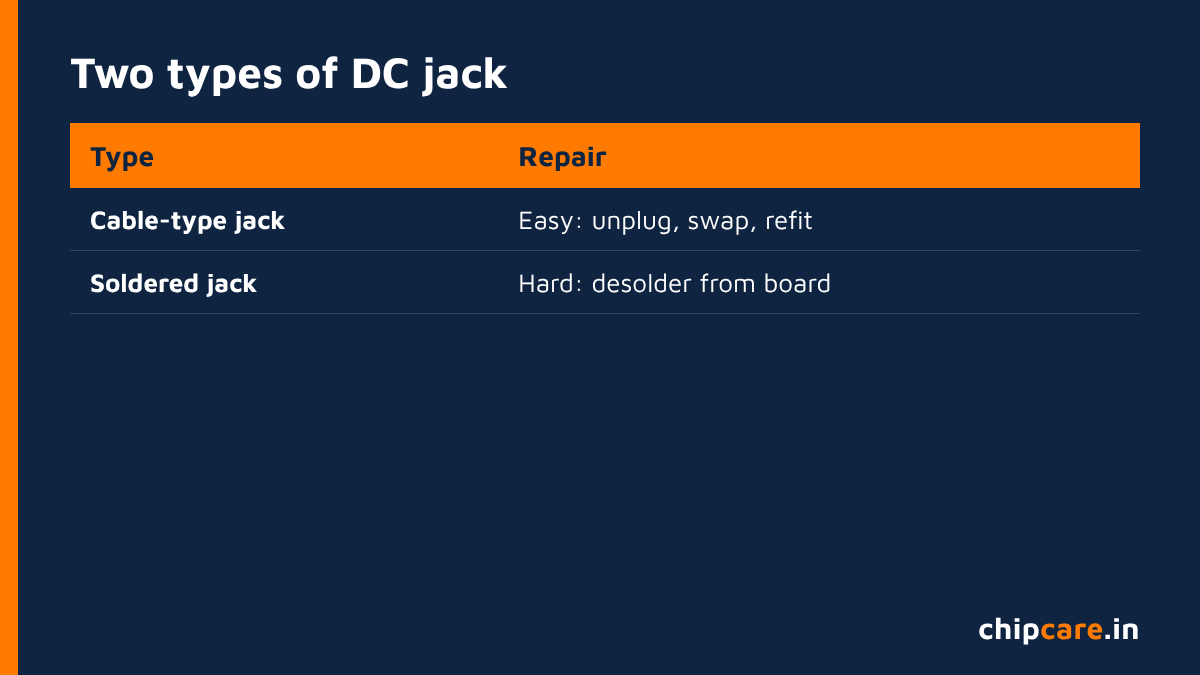
The two types of DC jack
| Type | How it is fitted | Repair difficulty |
|---|---|---|
| Cable-type jack | A small socket on a short cable that plugs into the motherboard | Easy. Unplug, swap and refit |
| Soldered jack | Soldered directly onto the motherboard | Hard. Needs desoldering and good soldering skill |
If the jack is soldered to the board, a bad repair can damage the motherboard, which turns a small job into a big one.
Signs the jack is the problem
- The laptop charges only when you hold the plug at a certain angle.
- The charging light flickers when you touch the cable.
- The plug feels loose in the socket, or wobbles.
- You can see bent or broken metal inside the socket.
- The plug gets hot, or you smell something burnt.
- The laptop runs on battery only, even with a working charger.
Hot plugs and burning smells are a warning. Stop using the charger and have it checked, because a damaged jack can short or overheat. A swollen battery can also cause trouble, so see swollen battery dangers if you notice bulging.
How to confirm a jack fault
- Use a known-good charger.
Test with a matching charger. If the fault remains, the jack or the board is suspect. - Wiggle test.
With the laptop on, gently move the plug. If the charging indicator flickers, the contact is poor. - Look inside the socket.
Use a torch. Check that the centre pin is straight and not loose, and that there is no debris. - Check the cable-type jack's cable.
After opening the laptop, check that the connector to the motherboard is seated and the wires are not frayed. - Measure if you can.
With a multimeter, check for voltage at the jack's output when the charger is plugged in. No voltage at the board suggests a cable or jack fault. Our repair toolkit guide lists a basic multimeter.
How to replace a cable-type jack
- Prepare.
Turn off the laptop, unplug the charger and remove the battery if it is removable. Use an anti-static mat or wrist strap, as explained in ESD-safe repair basics. - Open the laptop.
Remove the bottom cover or keyboard, depending on the model, and keep screws organised by location. - Find the jack.
Follow the charger wire to the board. Note how it is routed. - Disconnect.
Unplug the jack's connector from the motherboard. - Remove and refit.
Free the old jack from its mount, fit the new one in the same position and route the cable the same way. - Reassemble and test.
Close the laptop, plug the charger and check that it charges without needing to wiggle the plug.
You can find parts for your model in our laptop DC jack category, and the right tools in laptop repairing tools.
Soldered jacks: when to get a professional
Replacing a soldered jack means desoldering several pins from a multilayer board, often with large copper areas that absorb heat. Too little heat leaves a poor joint, and too much can lift pads or damage the board. A technician with a hot-air station and a good iron can do it safely. If the jack has failed and also torn pads off the board, the repair is more involved. Compare the cost with the age and value of the laptop. Our guide on motherboard repair vs replacement helps you decide.
Buy the correct jack. Jacks differ in pin size, pin count, position and cable length. Match the part number or the model of your laptop. A jack that is almost the same fit can cause intermittent charging.
Protecting the jack after the repair
- Do not yank the charger by the cable. Pull from the plug.
- Avoid using the laptop while it is charging if the cable is stretched or pulled.
- Do not wrap the cable tightly around the charger brick.
- Keep the cable supported on the desk so its weight does not pull the jack.
- Consider a charger with a right-angled plug if you often place the laptop near a wall.
- Do not use a damaged or loose charger, which can arc and damage the jack.
It is also worth checking the battery at the same time. A tired battery can make charging problems look worse. See how to check laptop battery health. For background on electrical connectors, see the page on the DC connector.
Choosing a replacement jack
A DC jack is identified by a few details, and getting them right avoids a second repair. Note the laptop model and the part number printed on the old jack, if there is one. Count the pins, check whether it has a centre pin, and compare the cable length and the connector at the board end. The plug size is also important: a jack made for a different barrel size will not hold your charger firmly. When in doubt, send us the model and a photo of the old jack, or search by model in our category and compare the images closely.
- Barrel size. Confirm that it matches your charger's tip.
- Pin count. Two-pin and three-pin versions are not interchangeable.
- Cable length. A short cable will not reach the board connector on a larger laptop.
- Mounting. The screw holes and clips should match the chassis.
What if the board is damaged
Sometimes the jack has been loose for a long time, and the force on the plug has cracked solder joints or lifted tracks on the board. In that case, a new jack alone will not restore charging. Signs include a laptop that still does not charge with a new jack, a charger light that stays off, or a charging circuit that gets hot. A technician can check the charging circuit and the nearby components with a multimeter. If the board needs repair, compare the cost with the value of the laptop, and consider our guide on motherboard repair vs replacement.
Frequently asked questions
How do I know if my laptop's DC jack is broken?
If the laptop charges only when the plug is held at an angle, the charging light flickers or the plug feels loose, the jack is likely worn. Test with a known-good charger first to rule out the charger.
Can I replace a DC jack myself?
If it is a cable-type jack, it is usually an easy swap. If it is soldered to the motherboard, we recommend a professional because a poor repair can damage the board.
Why does the charging plug get hot?
A loose or worn contact causes resistance, which makes heat. Stop using the charger and have the jack and the charger checked.
Can a bad jack damage the battery?
Poor contact can cause repeated charge and discharge cycles that stress the battery, and arcing can damage the board. Fix the jack promptly.
Is a wobbly charger plug always the jack's fault?
Not always. A worn plug or a stretched cable can also cause it. Try another charger to find out.
How can I stop the jack failing again?
Pull from the plug, not the cable, support the cable's weight and avoid sharp bends near the plug.