

Adding memory is still the cheapest way to make an ageing laptop feel quick again, but only if you buy the right stick. Laptop RAM comes in different generations, speeds and shapes, and the wrong choice means a module that will not fit, will not boot or runs slower than it should. This guide shows how to check what your laptop already has, what it can take, and how to install it safely.
Can your laptop's RAM be upgraded at all?
Before anything else, find out whether the memory is replaceable. Many business and gaming laptops have one or two open slots under a service panel. Thin ultrabooks and all Apple silicon MacBooks have the memory soldered to the board, which means it cannot be changed. Some laptops mix the two: a soldered amount plus one free slot. A search for your exact model number plus "RAM upgrade" in the maker's service manual settles it in a minute.
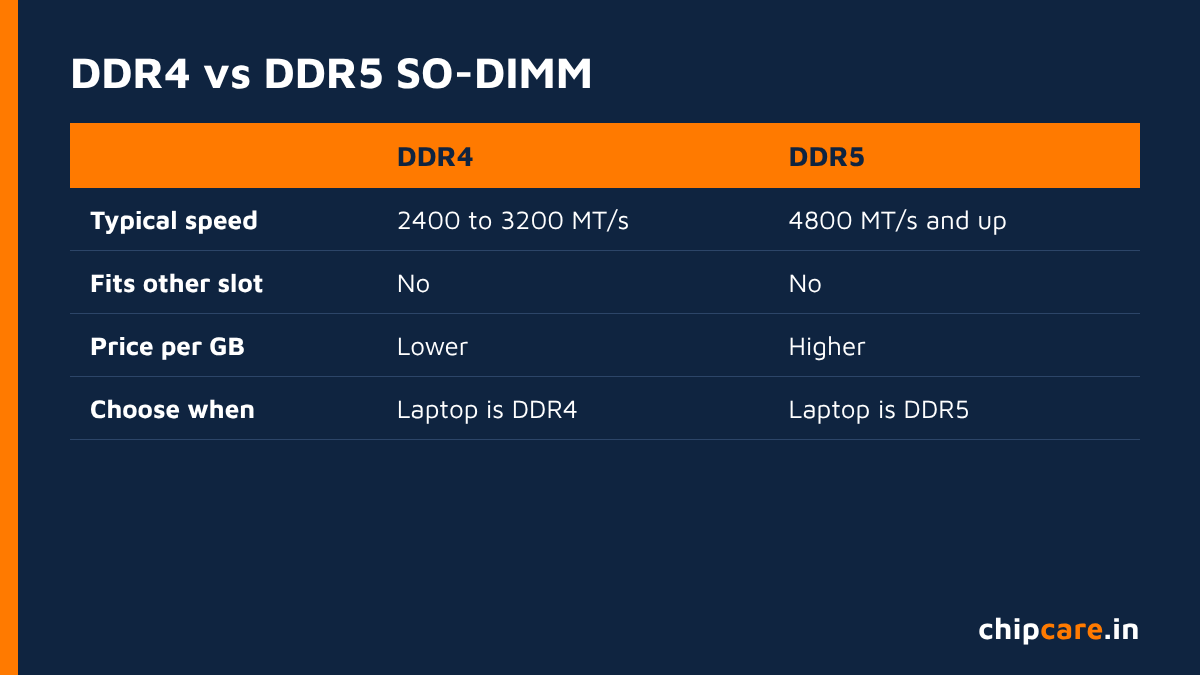
DDR4 vs DDR5: the part you must get right
Laptops use compact modules called SO-DIMMs. Today you will meet two generations, DDR4 and DDR5. They are keyed differently, so one will not physically fit the other's slot, and your laptop's chipset supports only one. You cannot mix generations to "get the best of both".
| Point | DDR4 SO-DIMM | DDR5 SO-DIMM |
|---|---|---|
| Common in | Laptops from roughly 2016 to 2022 | Newer laptops from about 2022 onward |
| Typical speeds | 2400 to 3200 MT/s | 4800 MT/s and above |
| Fits a DDR4 slot | Yes | No |
| Price per GB | Lower | Higher |
| Best for | Upgrading an existing DDR4 laptop | Laptops that already ship with DDR5 |
How to check what RAM you have right now
Open Task Manager, go to Performance, then Memory. You will see the total size, the speed and how many slots are used. For more detail, run this in PowerShell. It lists each installed module with its size and speed. The type code is 26 for DDR4 and 34 for DDR5.
Get-CimInstance Win32_PhysicalMemory | Select-Object BankLabel, Capacity, Speed, SMBIOSMemoryType
Get-CimInstance Win32_PhysicalMemoryArray | Select-Object MemoryDevices, MaxCapacity
The second line tells you how many slots exist and the maximum memory the board supports. The capacity is shown in kilobytes, so divide it twice by 1,024 to get gigabytes. On Linux, sudo dmidecode -t memory gives the same information.
How much RAM do you actually need?
- 8 GB: workable for browsing, office work and video calls, but tight once you keep many tabs open.
- 16 GB: the comfortable choice for most people in 2026, including students, accountants and light editors.
- 32 GB: worth it for design, development, heavy multitasking and virtual machines.
If your laptop has two slots, two matching modules run in dual channel, a mode that can give noticeably better performance than one large stick, especially for integrated graphics. Read about how it works under multi-channel memory architecture. If you have one 8 GB module and one empty slot, adding a second 8 GB module of the same speed is often the best value.
Good to know: If you mix two modules of different speeds, the laptop will usually run both at the slower speed. Matching the pair avoids a quiet performance loss.
Step by step: installing laptop RAM
- Back up and shut down.
Save your work, shut the laptop down completely, and unplug the charger. - Disconnect power.
If the battery is removable, take it out. If it is sealed, follow your model's service guide, which often asks you to disconnect the battery connector first. - Open the service panel.
Remove the screws and lift the cover with a plastic pick. Avoid metal tools that can scratch the board. - Ground yourself.
Touch a bare metal part of the chassis before handling components. Static discharge can damage memory, so an anti-static strap helps. - Remove the old module if needed.
Push the two side clips outward. The module pops up at an angle. Pull it out by the edges, not the gold contacts. - Insert the new module.
Slide it into the slot at about 30 degrees with the notch aligned, then press it down until the clips snap shut. - Close up and test.
Refit the panel, reconnect power, and boot. Check Task Manager to confirm the new size and speed.
The most common upgrade failure is not a bad module. It is a module that was never fully clicked into the slot.
Choosing the right module for your laptop
Match three things: generation, speed and capacity. Then match the form factor, which for almost every laptop is SO-DIMM. Our laptop RAM range lists each module with its type and speed, and you can start with trusted brands such as Crucial, Corsair and ADATA. If your laptop uses DDR4, a module like the Crucial 16GB DDR4 3200MHz is a common upgrade, and the Corsair Vengeance 8GB DDR4 3200MHz suits a pair build. Always confirm against your laptop's supported specification before you order.
A memory upgrade pairs well with a faster drive, since the two together change daily speed more than any single part. We compare the options in SSD vs HDD for laptops.
What to do if the laptop will not boot after the upgrade
Do not panic. Power off, reopen the panel and reseat the module until it clicks. Try each module alone in each slot to find a faulty stick. Check that the generation and speed are supported, and see whether a BIOS update is available for your model. If the laptop boots with the old RAM but not the new one, the new module is the likely cause. A reputable seller with a clear return policy makes this a short detour rather than a loss.
Ready to upgrade your laptop memory?
Find DDR4 and DDR5 laptop RAM from trusted brands, with warranty on every listing.
Common RAM upgrade mistakes to avoid
- Buying desktop memory. Desktop DIMMs are longer and will not fit a laptop. Look for SO-DIMM in the listing.
- Ignoring the maximum capacity. Some laptops officially support only 16 GB or 32 GB in total. Installing more may work, may not, and is never guaranteed.
- Forgetting the voltage and speed. DDR4 SO-DIMMs run at 1.2 V and DDR5 at lower voltage with on-module power management. The laptop handles this, but buying the wrong generation wastes a purchase.
- Not checking free slots. A laptop with one slot and one soldered chip has half the upgrade options of a two-slot machine.
- Rushing the install. Forcing a module in at the wrong angle is how pins get bent. If it does not slide in easily, take it out and look again.
Memory also matters for integrated graphics, which share system RAM with the processor. A laptop with a single module often performs worse in games and video editing than the same laptop with two matched modules, which is another reason the pair can be worth the extra cost. Whichever way you go, record the old module's label before you remove it; it makes returns and warranty claims far simpler if something does not work.
Frequently asked questions
How do I know which RAM my laptop supports?
Check the generation (DDR4 or DDR5), the maximum capacity and the speed in the maker's specification for your exact model. Tools like Task Manager and the PowerShell commands above show what is installed and how many slots exist.
Can I put DDR5 RAM in a DDR4 laptop?
No. The modules are keyed differently and the laptop's memory controller supports only one generation, so a DDR5 stick will not fit or work in a DDR4 slot.
Is it safe to upgrade laptop RAM myself?
Yes, on laptops with a service panel it is one of the easier upgrades. Power down, disconnect the battery, ground yourself and handle the module by its edges. Soldered memory cannot be upgraded.
Does more RAM make a laptop faster?
It helps when the laptop runs out of memory and starts using the disk as overflow, which causes slowdowns. If memory is not the bottleneck, extra RAM changes little. A faster SSD often helps more.
Should I buy one 16 GB module or two 8 GB modules?
Two matching 8 GB modules run in dual channel, which can be faster, while one 16 GB module leaves a slot free for later. If your laptop has two slots and you want the best performance now, choose the pair.
Can I mix different brands or speeds of RAM?
Often yes, but the laptop will normally run both at the slower speed and compatibility is not guaranteed. A matched pair is the safe choice.