
The laptop cannot find your Bluetooth headphones. Or the Bluetooth switch is missing from settings, the mouse connects and drops, or the device pairs but the sound stutters. Laptop Bluetooth problems are mostly about drivers, power settings and interference, but they also include a hardware side that people overlook: a loose or damaged wireless card, an antenna cable that has come off or a combined Wi-Fi and Bluetooth module that has failed. This guide goes through the checks from the quick ones to the hardware, and explains how to tell a laptop problem from a problem with the accessory.
Is it the laptop or the accessory?
Pair the accessory with a phone first. If it connects there, the accessory is fine and the laptop is the problem. If it does not connect to the phone either, the accessory is at fault, or its battery is flat. Then try a different Bluetooth device with the laptop. If another device connects, the laptop Bluetooth works and the first accessory has a pairing or compatibility issue. This two-way test saves hours of driver changes. See phone Bluetooth not connecting fix for the phone side of the same checks.
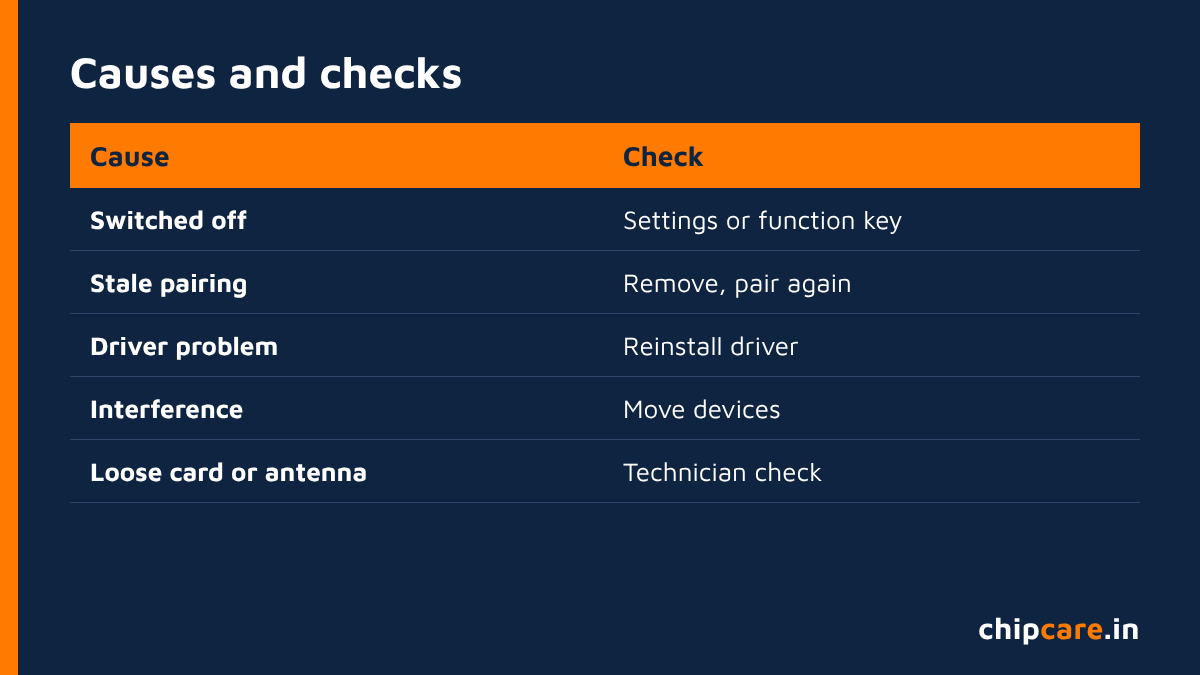
Causes and checks
| Cause | Clue | Check |
|---|---|---|
| Bluetooth or airplane mode off | No Bluetooth toggle shown on | Turn on in settings or with a function key |
| Accessory not in pairing mode | Device not found | Hold the pairing button |
| Stale pairing record | Paired before, now fails | Remove the device and pair again |
| Driver missing or damaged | Yellow mark or no Bluetooth entry | Reinstall the driver |
| Power saving turns it off | Drops after a while | Disable the power-saving option |
| Interference | Stutter near Wi-Fi or USB 3 devices | Move devices, change position |
| Loose or damaged wireless card | Bluetooth vanishes entirely | Technician check |
| Antenna cable off | Short range, drops, poor Wi-Fi too | Re-seat antenna leads |
If Bluetooth and Wi-Fi both act up, think hardware. They often share a single card and antenna.
Step by step: fixes in order
- Check the switch.
Turn off airplane mode, turn Bluetooth on, and check any function key. - Restart the laptop.
Do a full restart, not just sleep. - Remove and re-pair the device.
Delete the old entry and pair again from scratch. - Update or reinstall the driver.
Download from the laptop maker's site for your exact model and Windows version. - Turn off power saving for the adapter.
In device manager, clear the option that lets the system switch it off. - Run the built-in troubleshooter.
It resets services that can stall pairing. - Check in BIOS.
Some laptops have a wireless setting that can be disabled there. - Book a hardware check.
If Bluetooth does not appear at all after a clean driver, the card or antenna may be at fault.
Hardware causes in detail
Most laptops have a small wireless card on the board that handles both Wi-Fi and Bluetooth, with two thin antenna leads clipped to it. A drop, a swollen battery pushing on the card or a previous repair can loosen a lead, and the result is short range, dropped connections and slow Wi-Fi along with Bluetooth trouble. A failed card makes Bluetooth disappear from the system. The repair is to re-seat the card and leads, or to replace the card, which is a low-cost part on many laptops. Some laptops have the module soldered in, which makes the repair harder. See laptop Wi-Fi not connecting fix and laptop motherboard repair vs replace.
Disconnect the battery before opening the laptop. Working on a board with the battery attached can cause a short circuit.
Audio over Bluetooth: a special case
If headphones pair but sound stutters, the cause is often interference or a weak signal, not a broken card. Keep the laptop and headphones in line of sight, move away from a crowded Wi-Fi router and try a different Bluetooth channel if your router allows it. If audio plays from the laptop speakers while headphones are connected, set the headphones as the default output. For wired audio problems, see laptop speaker not working fix.
USB Bluetooth adapters
If the internal card has failed and a repair is not worth it, a small USB Bluetooth adapter can restore function at low cost. Pick a recent adapter that is known to work with your system, and disable the faulty internal one to avoid conflicts. This is a reasonable stopgap on an older laptop. You can browse laptop parts or laptop spare parts for other components.
Common mistakes
- Installing drivers for the wrong model.
- Blaming the laptop when the accessory has a flat battery.
- Keeping stale pairings.
- Forgetting the power-saving setting.
- Ignoring poor Wi-Fi, which points to the shared card or antenna.
For repair shops
Check Wi-Fi and Bluetooth together, because the shared card tells you a lot. Reseat leads and test again before ordering a part. Keep a few common cards in stock, and confirm that the replacement card is compatible with the laptop's whitelist, since some laptops reject unlisted cards. See how to test phone parts before installing. For background, see the Wikipedia page on Bluetooth.
Resetting the Bluetooth stack on Windows
If the device list is stuck or devices fail to pair, stop and restart the Bluetooth support service, remove all old pairings and restart the laptop. In device manager, uninstall the Bluetooth adapter and let the system detect it again on restart. This clears corrupted settings and often cures odd behaviour such as devices that show as paired but do not connect. If the adapter does not return after a restart, the card may not be detected, which points to hardware or a BIOS setting.
Interference and placement
Bluetooth shares the same radio band as many Wi-Fi networks, microwave ovens and some USB 3 devices. A USB 3 hub or a flash drive plugged in next to the Bluetooth antenna can reduce range and cause stutter. Move the accessory closer, move the USB device to another port or use a short extension cable. In a crowded office with many networks, switching a router to the 5 GHz band can reduce interference, since Bluetooth uses the 2.4 GHz band.
Keep the accessory firmware up to date as well, because makers release fixes for connection problems. Charge the accessory fully before a long test, since low battery in headphones can cause dropouts that look like a laptop fault. If the problem appears with only one model of accessory, a compatibility issue may be at play and a driver or firmware update may fix it.
Frequently asked questions
Why is Bluetooth not working on my laptop?
It may be switched off, the driver may be faulty or the wireless card may have failed.
Why did the Bluetooth toggle disappear?
Usually a driver problem or a disabled adapter. Reinstall the driver and check BIOS.
How do I test the accessory?
Pair it with a phone. If it works there, the laptop is at fault.
Can Wi-Fi and Bluetooth fail together?
Yes, they often share a card and antenna.
Is a USB Bluetooth adapter a good fix?
It is a low-cost stopgap if the internal card has failed.
Why does audio stutter?
Interference or weak signal. Move closer and keep a clear line of sight.