
When a laptop's speakers go silent, quiet or crackly, it is natural to assume the speakers have failed. In practice, the cause is often something simpler: a setting, a driver, a muted output or the wrong device selected. Hardware faults do happen, but they come after the checks that cost nothing. This guide works through the problem in a sensible order, so you can find the cause without spending money on a part you do not need, and tells you when a speaker or audio part really needs replacing.
Step 1: the quick checks
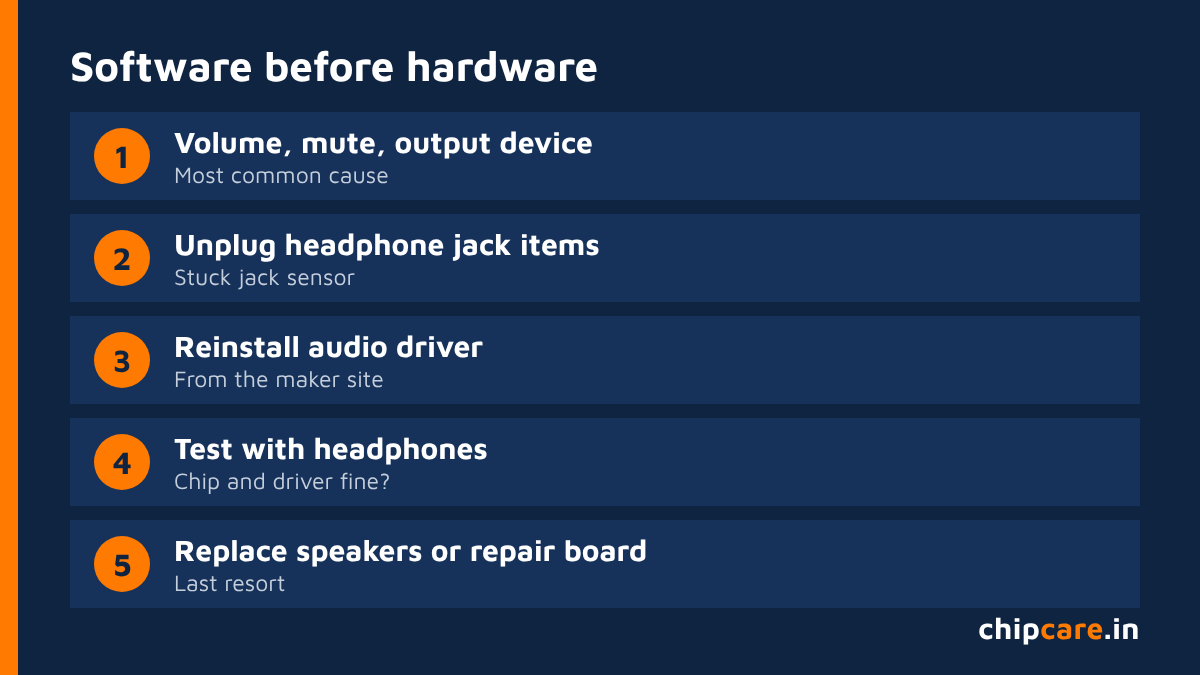
- Check the volume and mute.
Look at the system volume, the app volume and the keyboard mute key. A muted app or tab is a very common cause. - Select the right output.
Open the sound settings and make sure the laptop speakers are the default output, not a Bluetooth device or a monitor that is no longer connected. - Unplug anything in the headphone jack.
A faulty headphone jack can make the laptop think headphones are plugged in, which silences the speakers. - Restart.
A restart clears many temporary audio problems. - Try another app.
If only one app is silent, the fault is in that app, not the speakers.
Step 2: software and driver causes
| Symptom | Likely cause | What to try |
|---|---|---|
| No sound at all, output shows no device | Audio driver missing or broken | Reinstall or update the audio driver |
| Sound stopped after an update | Driver conflict | Roll back the driver or install the maker's version |
| Sound only through headphones | Jack sensor stuck, or wrong device selected | Check the jack, switch the output |
| Crackling or distortion | Audio enhancements or sample rate setting | Turn off enhancements and test |
| Very quiet sound | Volume limits, dust in the grille or a weak speaker | Check settings, clean the grille, test with headphones |
| One side silent | Balance setting or a failed speaker or cable | Check the balance, then test hardware |
If headphones sound fine and the speakers do not, the audio chip is working. The problem is in the speakers or their connection.
Reinstalling the audio driver
The audio driver is the software that lets the system talk to the sound chip. If it is damaged or replaced by a wrong one, you may lose sound even though the hardware is fine. Open the device manager, find the audio entry, and uninstall it, then restart so that the system reinstalls it. If that does not work, download the driver from the laptop maker's website for your exact model. Avoid random driver tools from unknown sites, because they can install the wrong version. Also make sure that the audio services are running, and that no third-party sound software is overriding the settings.
Step 3: the hardware tests
If the software checks do not help, test the hardware.
- Test with headphones.
If headphones work, the sound chip and the driver are fine. - Test with an external speaker over Bluetooth or HDMI.
This confirms that the system is producing sound. - Listen for the speakers.
Play a loud test sound and place your ear near the speaker grilles. A faint sound suggests the speaker is weak, and complete silence points to the cable or the board. - Check for physical damage.
A laptop that has been dropped or wet can have loosened or corroded speaker connections. - Open the laptop and check the speaker connector.
Make sure the speaker cable is seated on the board. Use anti-static care, as in ESD-safe repair basics.
When the speakers need replacing
A speaker can fail from age, from water or from a long period of loud use. Signs include a buzzing or rattling sound at any volume, a very weak output on one side, or complete silence when the connector and the settings are fine. Laptop speakers are usually sold as a pair on a short cable. You can find matching parts in our laptop speaker category, by laptop model. The replacement is usually simple: open the bottom cover, unplug the old pair, lift them out of their mounts, fit the new pair and reconnect. Note how the cable is routed under the other parts.
If the speakers are fine but the sound is still absent, the audio chip or the board circuit may be at fault, which is a motherboard-level repair. In that case, weigh the repair against the value of the machine. See motherboard repair vs replacement. The same process of testing and elimination applies to phones, as in phone speaker not working.
Water changes things. If the laptop has been wet, corrosion can affect the speakers and the audio circuit. Power it off and get it checked quickly rather than trying fixes.
Getting better sound from a laptop
- Keep the speaker grilles clean and uncovered. A soft cloth on a bed muffles the sound.
- Turn off audio effects if the sound is distorted.
- Use the maker's audio app for tuning, if there is one.
- For meetings and music, use headphones or a small external speaker.
- Do not run the volume at maximum for long periods, because it strains small speakers.
For background on how speakers work, see the page on the loudspeaker.
Crackling, hissing and other odd sounds
Not every audio fault is silence. A hiss that appears when nothing is playing can come from a poor ground, a charger that adds electrical noise or a driver setting. Test on battery power alone: if the hiss disappears, the charger is the source, and a better adapter may fix it. See how to choose the right laptop charger. A rattle at certain bass notes usually means a loose speaker mount, a cracked cone or a loose screw inside the case. A pop when the sound starts is often a power-saving feature in the driver, which you can adjust in the audio settings.
Try playing a clean test tone at a low, medium and high volume. If the distortion only appears at high volume, the speaker is being pushed past what it can handle, and a lower volume or an equaliser change will help. If it appears at all volumes, suspect the speaker or the connection. Write down what you hear and when, because the pattern tells a technician exactly where to look and saves time on the bench.
Checking the headphone jack
The headphone jack has a small switch that cuts the speakers when a plug is inserted. Dust, lint or a broken plug tip can leave the switch stuck in the headphone position. Shine a torch into the socket, and look for debris. A gentle puff of air or a plastic pick may clear it, but do not use metal tools. Plug in and remove headphones a few times, and see whether the output switches back to the speakers. If it does not, the jack itself may need replacement, which is a small board repair on many models.
Frequently asked questions
Why has my laptop sound stopped working?
The most common causes are muted volume, the wrong output device, a driver problem or a stuck headphone jack. Check these before assuming a hardware fault.
How do I know if the speakers are broken?
If headphones work and the speakers stay silent or buzz even with correct settings, the speakers or their connection are likely at fault.
Can a Windows update break the sound?
An update can replace the driver with a version that does not suit your laptop. Roll back the driver or install the maker's version.
Why is the sound crackling?
It can be caused by audio enhancements, a wrong sample rate, a driver problem or a damaged speaker. Turn off enhancements first.
Can I replace laptop speakers myself?
On most laptops, yes, because they are held by a few screws and plug into the board. Match the part to your model.
Why does only one speaker work?
Check the balance setting first. If it is even, a failed speaker or a loose cable is likely.