

If you are choosing between a solid-state drive and a hard disk for a laptop, the short answer in 2026 is the SSD, almost every time. The longer answer is that the right pick depends on how much space you need, how much you want to spend, and what your laptop can physically accept. This guide compares SSD and HDD on speed, price, durability and capacity, then helps you choose the right size and type for your machine.
SSD vs HDD in plain terms
A hard disk drive stores data on spinning magnetic platters, read by a moving head. A solid-state drive stores data in flash memory chips and has no moving parts. That one difference explains almost everything else: why an SSD wakes instantly, why it survives a bump in a backpack, and why it makes less noise and uses less power.
When people say a laptop "feels slow", the drive is very often the cause. Boot time, app launch, file search and updates all depend on how quickly the drive can read many small pieces of data. A hard disk is slow at exactly that job, because the head has to physically move.
Speed, price, durability and capacity compared
| Factor | HDD | SATA SSD | NVMe SSD |
|---|---|---|---|
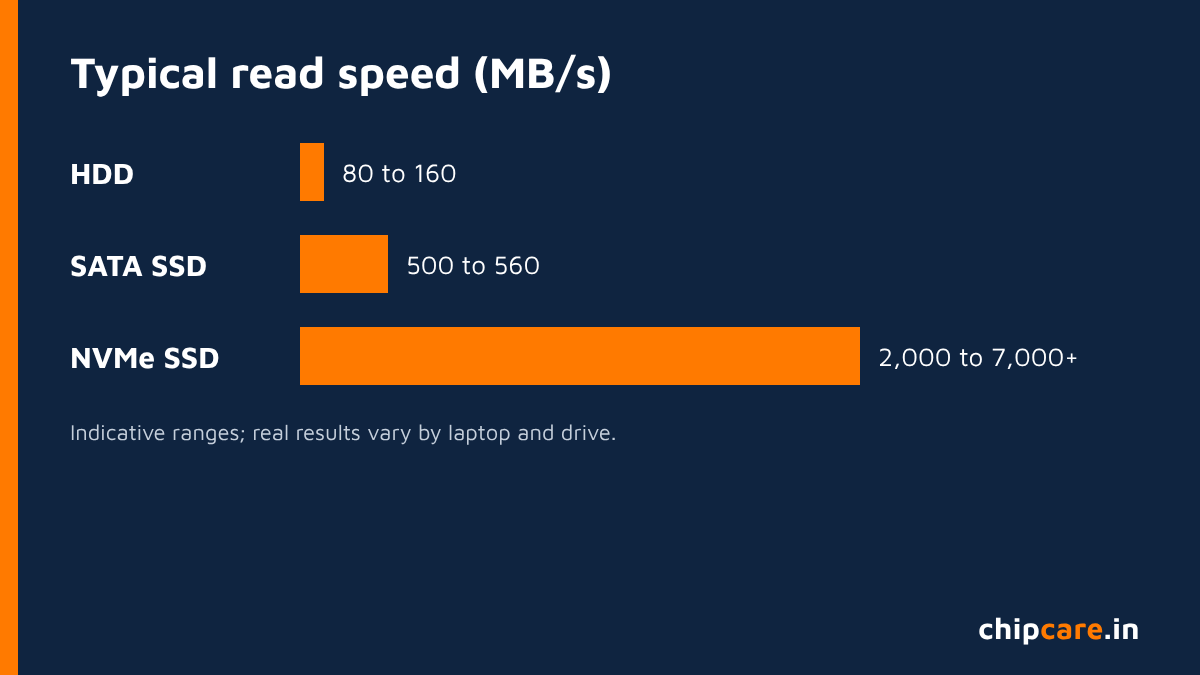
| Typical read speed | About 80 to 160 MB/s | About 500 to 560 MB/s | 2,000 to 7,000 MB/s and above |
| Boot and app launch | Slow | Fast | Fastest |
| Moving parts | Yes | No | No |
| Shock resistance | Low | High | High |
| Noise and heat | Audible, warmer | Silent | Silent, can run warm under load |
| Price per GB | Lowest | Mid | Mid to high |
| Best for | Cheap bulk storage | Upgrading older laptops | Newer laptops with an M.2 slot |
The speed figures above are typical ranges, not guarantees, and real-world results depend on your laptop, the controller and the workload. The gap between an HDD and any SSD is large enough to feel without a stopwatch.
SATA vs NVMe: the next thing to understand
SSDs come in two main flavours for laptops. A SATA SSD uses the older SATA interface and usually sits in a 2.5-inch case, like the one an old hard disk used. An NVMe SSD uses the NVM Express protocol over PCIe and comes as a small stick in an M.2 slot. NVMe is much faster, but your laptop has to support it. Some M.2 slots accept only SATA drives, and some accept both, so check your model's specification before buying.
Good to know: If your laptop has an old 2.5-inch HDD bay, a 2.5-inch SATA SSD is a drop-in upgrade. You do not need NVMe to see a big improvement.
How to see what drive your laptop has
You can check the drive type in seconds. Open PowerShell and run:
Get-PhysicalDisk | Select-Object FriendlyName, MediaType, BusType, SizeMediaType reads SSD or HDD, and BusType shows SATA or NVMe. If you see HDD, the upgrade will transform the machine. If it already shows an NVMe SSD, a bigger drive is the only reason to change.
How much storage do you need?
- 256 GB: the minimum for Windows plus basic apps. It fills quickly once photos and downloads pile up. See the 256 GB SSDs.
- 512 GB: a comfortable balance for most students and office users. Browse 512 GB SSDs.
- 1 TB: the sweet spot if you keep photos, videos, games or project files on the laptop. See 1 TB SSDs.
- 2 TB: for editors, developers with large projects, and anyone who hates deleting things. See 2 TB SSDs.
A good habit is to leave at least 10 to 20 percent of the drive empty. SSDs perform better with some free space to work with, and they use techniques such as flash memory wear management to spread writes evenly.
SSD lifespan: should you worry?
Flash cells wear out after a large number of writes, and that worries many buyers. In everyday use it is rarely a problem. A typical laptop user writes a small amount of data per day, and a modern SSD is rated for hundreds of terabytes written. The drive's warranty and TBW rating are on the box; a good SSD is far more likely to be replaced because it is too small than because it wore out. Hard disks have their own failure mode: the mechanical parts can fail, and a laptop dropped while a disk is spinning is a classic way to lose data.
If your laptop still has a spinning hard disk, an SSD is the single most noticeable upgrade you can make for the money.
When an HDD still makes sense
A hard disk still wins on price per gigabyte. If you need several terabytes of cheap storage for archives, backups or media, a laptop hard drive or an external disk is a reasonable choice. A common setup is an SSD for the operating system and apps, with an HDD for bulk files in a second bay or an external enclosure. Just do not run Windows from a spinning disk if you can avoid it.
How to upgrade from an HDD to an SSD
- Check the interface.
Find out whether your laptop uses a 2.5-inch SATA bay or an M.2 slot, and whether the M.2 slot is SATA, NVMe or both. - Choose the capacity.
Pick a size at least as large as the used space on your current drive, with room to grow. - Back up your data.
Copy important files to an external drive or cloud storage before you start. - Clone or reinstall.
Use cloning software to copy the old drive to the new one, or do a clean Windows install for a fresh start. - Swap the drive.
Power off, disconnect the battery, open the panel, replace the drive and close the laptop. A small screwdriver set from our laptop repairing tools helps here. - Boot and check.
Confirm the drive shows up, then check the BIOS boot order if needed.
Popular SSDs to look at
For a dependable SATA drive, the Crucial MX500 500 GB is a well-known choice. For an NVMe upgrade, the Samsung 980 1TB is a strong option for laptops with an M.2 slot. You can also browse by brand: Samsung, Crucial and Western Digital all have storage ranges on our site. Pair a new drive with more memory for the best result, and read our guide to upgrading laptop RAM next. If your laptop runs hot after the upgrade, the laptop battery and charging guide also covers cooling habits.
Upgrade to an SSD
SATA and NVMe drives from 128 GB to 2 TB, with warranty and clear compatibility notes.
Frequently asked questions
Is an SSD better than an HDD for a laptop?
For almost every laptop user, yes. An SSD boots faster, opens apps faster, survives knocks better and uses less power. An HDD only wins on price per gigabyte.
How much faster is an SSD than a hard disk?
A SATA SSD is typically several times faster than a laptop hard disk in sequential reads, and an NVMe SSD can be many times faster again. In daily use the biggest gain is in boot time and app launches.
What is the difference between SATA and NVMe SSDs?
SATA SSDs use the older SATA interface and top out around 550 MB/s. NVMe SSDs use PCIe in an M.2 slot and can be several times faster, but your laptop must support them.
Which SSD size should I buy for a laptop?
512 GB suits most people and 1 TB is the comfortable choice if you store photos, videos or games. 256 GB works only for light use.
Do SSDs wear out?
They have a limited number of write cycles, but a modern SSD is rated for hundreds of terabytes written, far more than a typical laptop user writes in the drive's useful life.
Can I use both an SSD and an HDD in one laptop?
If your laptop has a second bay or an extra M.2 slot, yes. Many people put the operating system on an SSD and use an HDD or external drive for bulk storage.


