
A laptop that is hot to the touch, with fans roaring and performance dropping, is a laptop in trouble. Heat shortens the life of the battery, the processor and the screen, and it makes everything slower in the meantime. The cause is usually simple and fixable: blocked vents, a tired fan, dried thermal paste or a power setting pushing the machine too hard. This guide shows how to find your cause and what to do about it.
How hot is too hot?
Laptops get warm under load, and that is normal. What is not normal is a laptop that runs hot while doing very little, shuts down on its own, or slows down sharply after a few minutes of work. Processors protect themselves by lowering their speed when they get too hot, a behaviour often called thermal throttling, which is related to the way modern chips adjust speed through dynamic frequency scaling. If your laptop feels sluggish only when it is hot, heat is the cause, not the processor.
To see real temperatures, use a monitoring tool from your laptop maker or a trusted utility such as HWiNFO. As a rough guide, idle temperatures well above 60 degrees Celsius, or load temperatures that sit at the processor's maximum for long stretches, point to a cooling problem. Check the processor's specified limit for your model.
Start with the free fixes
- Use a hard, flat surface.
Beds, sofas and laps block the intake vents. Put the laptop on a desk or a stand that lets air flow underneath. - Check the vents.
Look at the grille on the base and the sides. A layer of dust over the opening cuts airflow badly. - Close heavy programs.
Open Task Manager and look for apps or a runaway process using a lot of processor time. - Change the power mode.
Set the power plan to Balanced or Best power efficiency for ordinary work. High-performance modes run the processor harder and hotter. - Update the BIOS and drivers.
Makers sometimes release fan-control and power-management updates.
Good to know: If the fan never seems to spin up, or makes a grinding or clicking sound, stop using the laptop for demanding tasks and have the fan checked.
Dust: the most common cause
Laptops pull air in through small vents and push it out past a heatsink. Over months, dust and lint pile up on the fan and heatsink fins and starve the machine of airflow. Cleaning is often enough to bring temperatures down significantly.
For a basic clean, shut the laptop down, unplug it, remove the base panel and hold the fan blades still with a cotton bud while you blow air through the heatsink with short bursts of compressed air. If you let the fan spin freely under compressed air, it can overspin and be damaged. Use a soft brush to lift stubborn lint. Take care not to touch the board with metal tools, and discharge static by touching bare metal on the chassis first. Electrostatic discharge can harm components.
Thermal paste: when it dries out
Between the processor and the heatsink sits a thin layer of thermal paste that carries heat across. Over years it can dry and crack, which raises temperatures even when the fan is clean. If your laptop is a few years old, runs hot despite a clean fan, and throttles quickly, fresh paste is the next step. Read how it works in this overview of thermal grease. Remove the old paste with isopropyl alcohol and a lint-free cloth, apply a small pea-sized amount of new paste, and refit the heatsink with even pressure. A common rule of thumb is to check paste every two to three years on a laptop that works hard, though many machines never need it.
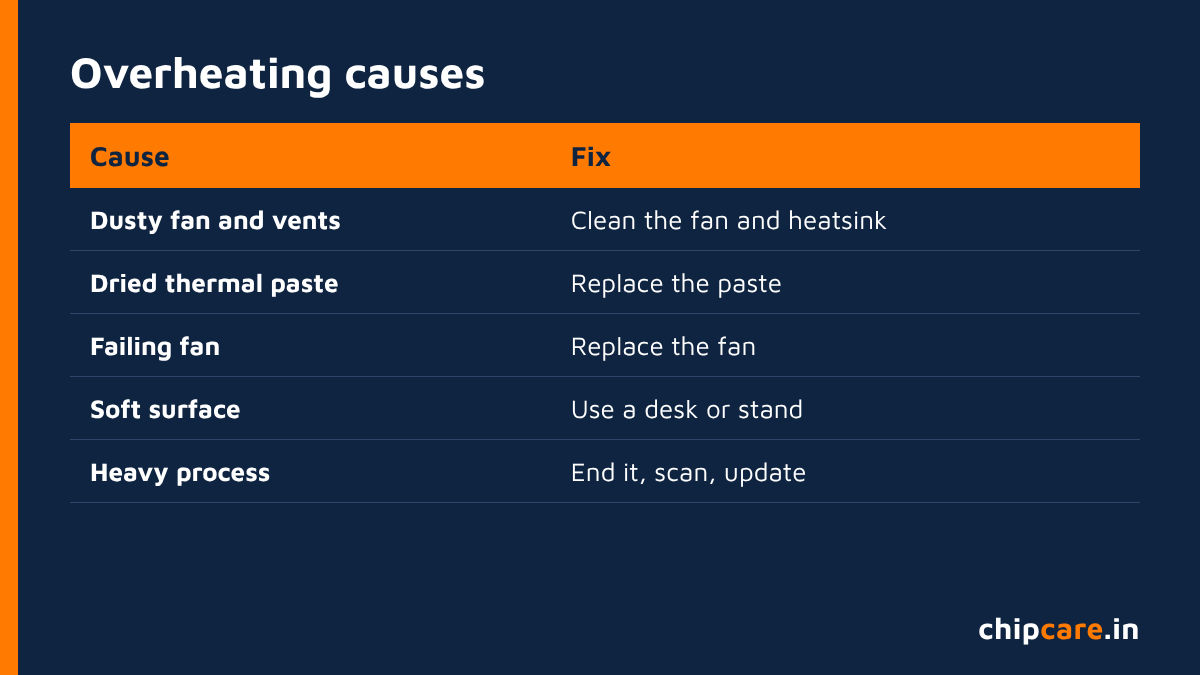
Match the symptom to the cause
| What you notice | Likely cause | What to do |
|---|---|---|
| Loud fan and hot air, gets better after cleaning | Dust on fan and heatsink | Clean the vents, fan and heatsink |
| Hot even with a clean fan; throttles quickly | Dried thermal paste | Replace the paste |
| Fan silent or noisy, grinding | Failing fan | Replace the fan |
| Hot only on the lap or bed | Blocked intake | Use a hard surface or a stand |
| Hot and slow with a busy Task Manager | Heavy process or malware | End the process, scan, update |
| Hot while plugged in, battery swollen | Failing battery | Stop use; replace the battery |
Clean first, repaste second, replace the fan third. That order solves most overheating for the least money.
When the fan or battery is to blame
If a clean fan still makes grinding noises, or the laptop gets hot with no airflow at all, the fan has probably worn out. Browse replacement cooling fans and heatsinks, and match the part number to your laptop. A hot laptop with a bulging base or lifted trackpad may have a swollen battery. Stop using it and read our guide to laptop battery and charging problems, then replace the pack with the right laptop battery.
Habits that keep a laptop cool
- Raise the back of the laptop slightly with a stand or a thin book to let air in.
- Use a cooling pad if you game or edit video for long periods.
- Clean the vents every few months, more often in dusty areas.
- Keep the laptop out of direct sun and hot cars.
- Do not run heavy tasks while the laptop sits in a bag or on a blanket.
- Replace the adapter if it gets very hot. A faulty adapter can heat the whole system.
An ageing laptop also runs hotter when its drive and memory are struggling. If yours is slow as well as hot, see how to speed up a slow laptop for the upgrades that help most.
Replace a worn laptop fan
Cooling fans and heatsinks matched to your model, with part type and warranty shown.
When to stop and get help
Some overheating is a sign to stop using the laptop for the time being. If the laptop shuts down repeatedly, smells of burning, shows a bulging battery or has a fan that is completely silent while the base is very hot, power it off and unplug it. These can point to a failing battery, a dead fan or a fault on the board, and running the laptop will only add to the damage. A technician can test the fan, check temperatures under load and tell you whether cleaning, a new fan or repasting will fix it. Ask them to explain the finding, so you can decide with the facts in front of you.
Frequently asked questions
Why is my laptop overheating?
The usual causes are dust blocking the fan and heatsink, dried thermal paste, a failing fan, blocked vents or heavy background processes. A clean and a check of the fan solves most cases.
How do I cool down a laptop quickly?
Move it to a hard flat surface, close heavy programs, switch to a Balanced power mode and let it rest. For lasting results, clean the vents and fan.
Can overheating damage a laptop?
Yes. Constant high temperatures shorten the life of the battery, processor, drive and screen, and can cause sudden shutdowns.
How often should I clean my laptop fan?
Every six to twelve months is a sensible guide, or more often if you use the laptop in a dusty place or notice rising fan noise.
Do cooling pads work?
They can lower temperatures a few degrees by moving extra air, which helps for long gaming or editing sessions. They do not fix a clogged fan or dried thermal paste.
Should I repaste my laptop myself?
You can if you are comfortable opening the laptop and following a guide for your model. If not, ask a technician, since poorly seated heatsinks can make heat worse.