

A dead pixel is a tiny point on the screen that stays black, or a stuck pixel that stays one bright colour, whatever the picture shows. One dot is annoying but harmless. A cluster of dots, a growing patch or a line of them points to something more serious. This guide explains the difference between dead, stuck and hot pixels, how to test for each on a phone, which tricks are worth trying and when the only honest answer is a new display. We also cover how shops judge a pixel fault on a replacement panel, because this is where many warranty arguments begin.
Dead, stuck and spreading: what you are looking at
Every pixel on a phone screen is made of smaller sub-pixels, usually red, green and blue. On an OLED panel each sub-pixel makes its own light. If its drive circuit fails, it goes dark. If the circuit is stuck on, it stays lit. A fully dead pixel is black on every image. A stuck pixel is a coloured dot that shows on a black image and may blend in on others. Pixels that fail from the factory are rare and often covered by a limited policy. Pixels that fail later, especially in groups, usually come from pressure, heat, a drop or moisture that has reached the panel. See phone screen black spots and ink bleed fix for the larger patches that start the same way.
Step by step: how to test properly
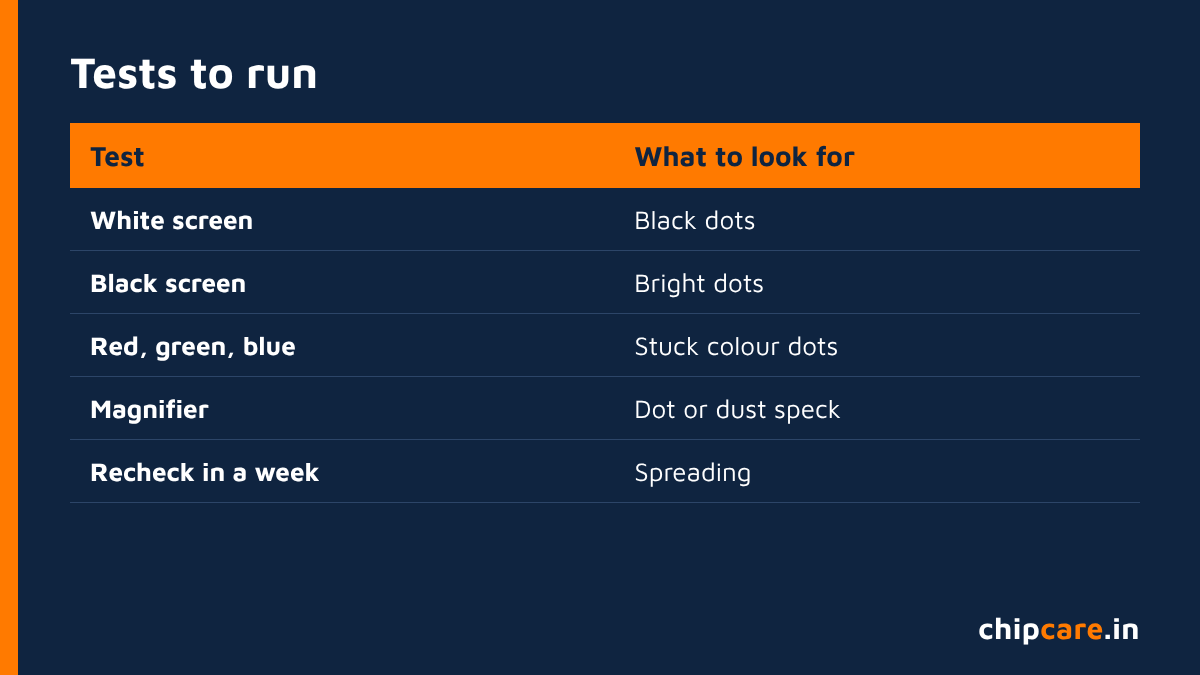
- Clean the screen.
Dust and oil can look like pixel faults. Wipe with a dry microfibre cloth. - Remove the protector if you can.
Bubbles and dust under a protector are often mistaken for pixel faults. - Show solid colours.
Use full-screen white, black, red, green and blue images, in a dim room, at full brightness. - Look with a magnifier.
A small lens makes the individual dot easy to see and tells you whether it is a pixel or a speck. - Press gently around the dot.
If it changes with light pressure, the fault is in the panel layers and may spread. Do not press hard. - Count and photograph.
Record how many dots there are and where they are. Check again after a week to see whether they grow.
What each result usually means
| What you see | Likely meaning | Action |
|---|---|---|
| One black dot, not growing | Isolated dead pixel | Often live with it, track it |
| One bright coloured dot | Stuck pixel | Try a gentle fix, or ignore |
| Several dots in one small area | Panel damage in that zone | Plan a replacement |
| A line of dots, vertical or horizontal | Driver or connection fault | Technician check |
| Dots that grow in number or size | Spreading damage | Replace the screen soon |
| Dot appeared after a drop or press | Physical damage | Check for cracks beneath the glass |
A single fixed dot is a flaw. A dot that has company next month is a fault.
Can a stuck pixel be fixed?
Sometimes. A stuck pixel on an LCD can occasionally be freed by running a rapidly changing colour pattern over it for a few minutes. Many free pixel-fixer videos and tools do this. Success is mixed, and the method works mostly on stuck pixels, not truly dead ones. On an OLED panel the method has little effect, because the fault is in the circuit that drives a self-lit pixel. Do not rub or press hard, and do not use sharp tools. Rubbing can crack the glass or damage the polarizer. If a pattern does not help within about ten minutes, stop. Extra runs on an OLED can cause uneven ageing, so use these tools sparingly.
Why pixels fail in the first place
Most late pixel failures come from three things. The first is physical pressure, such as a phone sitting in a tight pocket or under a heavy bag. The second is heat, because OLED layers and the glue that holds them degrade when the phone is repeatedly hot. The third is moisture or contamination that gets to the panel edge through a poor seal, which is common after an unprofessional repair. A fault that appears soon after a drop is more likely to be physical. A fault that appears gradually and is scattered across the screen is more likely heat or ageing. See phone screen white spots and pressure marks fix and phone overheating causes and fixes.
Do not squeeze the phone to test it. Hard pressure on a thin OLED can turn a single dead pixel into a visible dark patch.
Is it covered by warranty?
Manufacturers use different standards, and most allow a small number of faulty pixels before they accept a claim. A shop selling a replacement display should use a clear policy too, and it is worth asking what it is before you pay. Good policies say that any dead or stuck pixel visible in a standard test, or any line or patch, is replaced. Weak policies hide behind phrases like "normal for this type of panel". Ask for the policy in writing, check the screen on solid colours before you leave the counter and keep your receipt. See what a phone repair warranty covers.
When to repair and when to wait
If the phone has a single dot that has not changed for months, there is no need to repair it. If the dots are increasing, if a line has appeared or if the dots are near the middle of the screen where you read, a replacement is worth planning. Take a backup first, using how to back up a phone before repair. You can compare panel types in incell vs OLED vs TFT replacement screen quality and find your model among mobile phone displays.
Common mistakes
- Confusing dust or a protector bubble with a dead pixel.
- Pressing or rubbing the dot.
- Running pixel-fix patterns for hours on an OLED.
- Accepting a replacement panel with dots because "it is normal".
- Ignoring a line of dots, which is a driver fault and not a single pixel.
For repair shops
Test every incoming panel on at least five solid colours before it goes into a phone, and again after fitting, with the customer present. Keep a short written policy on pixel faults and show it before the repair. A customer who sees you check the screen is much less likely to dispute it later. See how to test phone parts before installing and how to spot fake spare parts. For background, see the Wikipedia page on defective pixels.
Frequently asked questions
What is the difference between a dead and a stuck pixel?
A dead pixel is always black. A stuck pixel is always lit in one colour.
Can I fix a dead pixel at home?
Rarely. Stuck pixels sometimes respond to a colour pattern, but dead ones usually do not.
Will one dead pixel spread?
Often not, but track it. If new dots appear, plan a replacement.
Is a dead pixel covered by warranty?
It depends on the maker or shop policy. Ask for the standard in writing.
Can a screen protector cause dots?
Dust or a bubble can look like a dot. Remove the protector to check.
Does heat cause pixel faults?
It can contribute, especially on OLED panels used hot for long periods.